Manage members
Invite and manage members of your team.

The community members page in Zealy settings is where a community invites people by email or invite link and decides what each person can do. Roles run in a single ladder — admin, editor, reviewer, guest, and banned — from full control of settings down to no access at all. Each role includes everything the role below it can do; there are no custom roles and no way to scope a role to particular quests. Private communities admit new members by invite only.
Overview
You can manually invite, suspend, and promote/demote members to admin roles from the Community members settings page.
Basics
Manage members under Settings > Community > Members. The community members page should not be confused with CRM page that is part of the premium features and allows you to filter all the members in your community by different properties.
Invite members
Go to the Settings > Community > Members to invite members to your community. You can do this either by sending an invite to their email or by sharing the invite link straight with the people you would like to invite
Private communities
For private communities, anyone joining needs to do this by invite. You can generate it either like described above, or straight from the sidebar by clicking the community menu. If you would like to make your community private, you might do this from Settings > Community > Security.
Roles
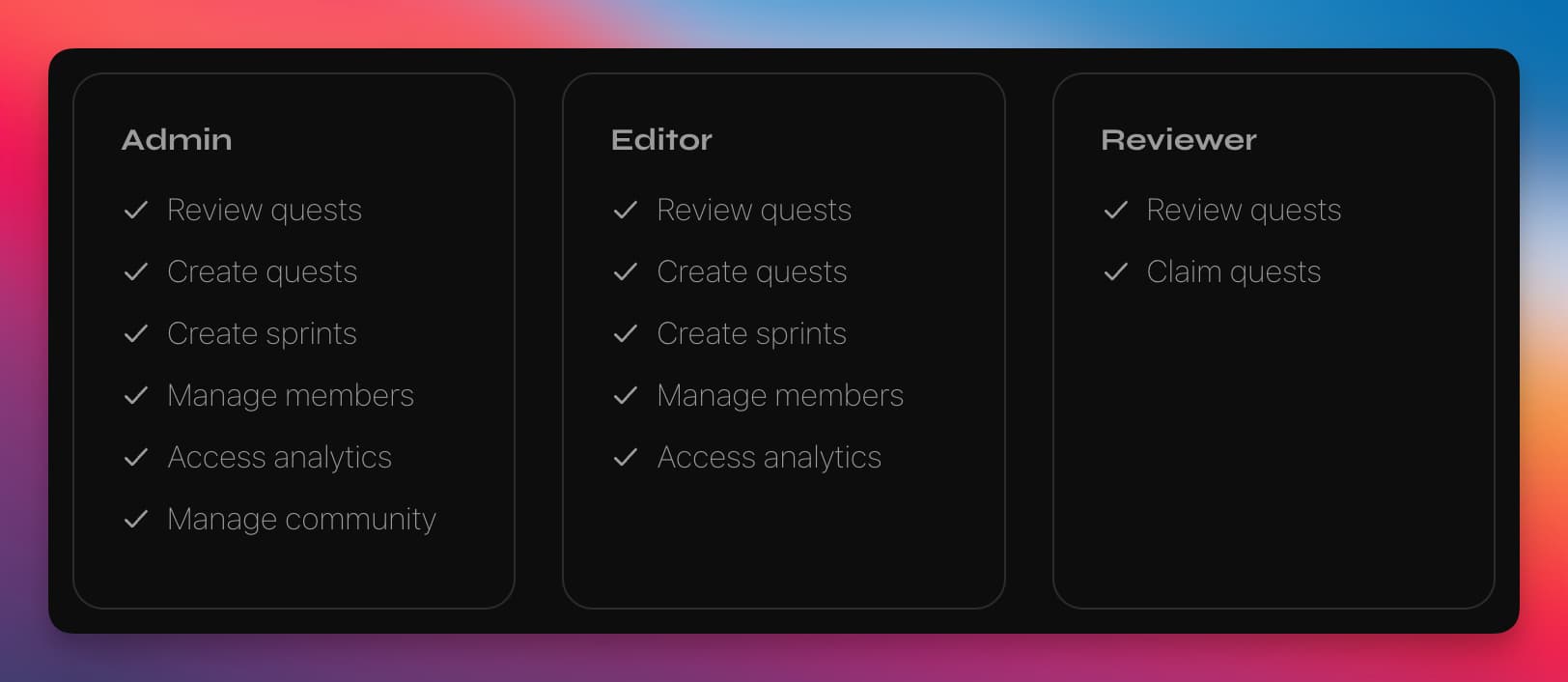
Roles form a single ladder, and each one can do everything the roles below it can:
- Admin: full permission to manage community settings, including changing other members' roles, creating invite links, and adding or removing XP directly. Admins cannot change their own role.
- Editor: everything a reviewer can do, plus configuring quests, modules and sprints, and seeing unpublished quests. An editor can also reset their own quest claims to retake a quest.
- Reviewer: claim quests, and review other members' submissions. Reviewers cannot review their own claims; those are left out of whatever they are reviewing. A reviewer can also award bonus XP when approving a claim.
- Guest: claim quests.
- Banned: no access.
There are no custom roles, and a role cannot be limited to particular quests or modules. If you need finer-grained access than this for an integration rather than a person, a scoped API key is the better fit.
Removing members
If your community is private you can remove members from the community from the CRM or the members settings by changing their role. If not, you can ban the user from their profile. All banned users can be found on by changing the filters from "All active" to "Banned" on the members settings page.